Monday, 9 July 2012
 In this HTML tutorial, I am going to teach you about HTML's preformatted tag. As its name suggest that its a tag that is used to format the text as it is in the editor. With the help of preformatted tags you can create simple tables or list of contents that is formatted in a pre formatted manner.
You can use the preformatted tags, <PRE> and </PRE>, to keep the line breaks and spaces you enter for a paragraph or block of text. Web browsers ignore hard returns, line breaks, and extra spaces between words unless you insert the preformatted tags. If you type a paragraph with spacing just the way you want it, you can assign the preformatted tags to keep the spacing in place.
- Type <PRE> above the text you want to keep intact.
- Type </PRE> below the text.
Here's an example of the Preformatted Text by using <PRE> HTML Tag:
So, How's my tutorials? I hope you're enjoying my HTML tutorials. Looking forward for your valuable suggestions and comments.<pre> Name Sabrez Alam Address Pune Blog http://mycomputertuts.blogspot.com/ </pre>
Monday, 9 July 2012 1
In this HTML tutorial, I am going to teach you how to insert a line break between paragraphs and normal lines of HTML. Also you can use blank spaces in HTML documents by using entities. Go through the tutorials to learn more.
You can use the line break tag, <BR>, to control where your text breaks. Web browsers normally wrap text automatically; when a line of text reaches the right side of the browser window, it breaks and continues on the next line. You can insert a line break to instruct the browser to break the text and go to a new line.
You can also use the <BR> tag to add blank lines between paragraphs. This is useful if you want to add extra space above or below a block of text or a heading.

Here are some example of Line Break:
You can insert blank spaces within a line of text to indent or add emphasis to your text. You can also use blank spaces to help position an element on a Web page, such as a graphic or photo.
Type in the line where you want to add a blank space. To add multiple spaces, type the code multiple times. The code stands for non-breaking space. Web browsers will not create a line break where you insert these characters.
Here is an example of blank spaces between words:
Web Designing Tutorials
You can use the line break tag, <BR>, to control where your text breaks. Web browsers normally wrap text automatically; when a line of text reaches the right side of the browser window, it breaks and continues on the next line. You can insert a line break to instruct the browser to break the text and go to a new line.
You can also use the <BR> tag to add blank lines between paragraphs. This is useful if you want to add extra space above or below a block of text or a heading.
Here are some example of Line Break:
MyComputerTuts is a free Computer Tutorials blog.<BR> In this blog, you can learn HTML tutorials, CSS tutorials, Photoshop Tutorials, Dreamweaver tutorials and other web designing and web programming tutorials.
<p>Insert a Blank Space
MyComputerTuts is a free Computer Tutorials blog.<BR>In this blog, you can learn HTML tutorials, CSS tutorials, Photoshop Tutorials, Dreamweaver tutorials and other web designing and web programming tutorials.
</p>
You can insert blank spaces within a line of text to indent or add emphasis to your text. You can also use blank spaces to help position an element on a Web page, such as a graphic or photo.
Type in the line where you want to add a blank space. To add multiple spaces, type the code multiple times. The code stands for non-breaking space. Web browsers will not create a line break where you insert these characters.
Here is an example of blank spaces between words:
Web Designing Tutorials
 In this HTML tutorial, I am going to teach you how to create a new paragraph in HTML and control its alignment? Create a paragraph and controlling its alignment is very easy in HTML. Just you need to remember <P> paragraph tag and its attributes like Left, Right, Center and Justify.
Create a New Paragraph
You can use paragraph tags to start new paragraphs in an HTML document. In a word processing program, you press Enter or Return to separate blocks of text. Web browsers do not read these line breaks. Instead, you must insert a <P> tag in your HTML any time you want to start a new paragraph in your Web page. Paragraphs are left-aligned by default, but you can choose a different alignment using the align tags.
Creating a new paragraph in HTML:
<p>
MyComputerTuts is a free Computer Tutorials blog. In this blog, you can learn HTML tutorials, CSS tutorials, Photoshop Tutorials, Dreamweaver tutorials and other web designing and web programming tutorials.
</p>
Change Paragraph Alignment
You can control the horizontal positioning, or alignment, of your paragraphs using the ALIGN attribute. You can choose to align a paragraph to the left, right, or center, or justify the text so it is aligned on both the left and the right. Paragraphs are left-aligned by default.
You can use the ALIGN attribute within numerous tag elements, including headings and lists. For example, you can center a heading or right-align a bulleted list.
Here are some examples of aligning a paragraph in HTML:
To align the paragraph right side of the page.
You can control the horizontal positioning, or alignment, of your paragraphs using the ALIGN attribute. You can choose to align a paragraph to the left, right, or center, or justify the text so it is aligned on both the left and the right. Paragraphs are left-aligned by default.
You can use the ALIGN attribute within numerous tag elements, including headings and lists. For example, you can center a heading or right-align a bulleted list.
Here are some examples of aligning a paragraph in HTML:
To align the paragraph right side of the page.
<p align="right">
MyComputerTuts is a free Computer Tutorials blog. In this blog, you can learn HTML tutorials, CSS tutorials, Photoshop Tutorials, Dreamweaver tutorials and other web designing and web programming tutorials.
</p>
To align the paragraph left side of the page.
<p align="left">
MyComputerTuts is a free Computer Tutorials blog. In this blog, you can learn HTML tutorials, CSS tutorials, Photoshop Tutorials, Dreamweaver tutorials and other web designing and web programming tutorials.
</p>
To align the paragraph center of the page.
<p align="center">
MyComputerTuts is a free Computer Tutorials blog. In this blog, you can learn HTML tutorials, CSS tutorials, Photoshop Tutorials, Dreamweaver tutorials and other web designing and web programming tutorials.
</p>
To justify the paragraph.
<p align="justify">In the above tutorial, I have mentioned every possible alignment that you can use with a paragraph in HTML. Hope you have enjoy this article. Keep visiting this blog more wonderful tutorials like this.
MyComputerTuts is a free Computer Tutorials blog. In this blog, you can learn HTML tutorials, CSS tutorials, Photoshop Tutorials, Dreamweaver tutorials and other web designing and web programming tutorials.
</p>
Sunday, 8 July 2012
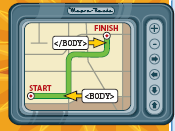 Are you ready to create your first HTML webpage? In this HTML tutorial, I am going to teach you that how can you create your first HTML webpage by using HTML Tags. Although Web pages can differ widely in terms of content and layout, all pages have certain HTML tags that give them the same basic structure. Understanding this structure helps you begin to build your own HTML pages.
So, Here are the basic things that you must know before creating a HTML webpage.
HTML Tags
The <HTML> and </HTML> tags at the beginning and end of a text document identify it as HTML code. When a browser encounters these tags, it knows that anything within the two tags defines a Web page. Older Web browsers expect to see the HTML tags; with the latest version of HTML and newer versions of browsers, the tags are not always necessary, but adding them is good form.
Document Type Declaration
You can add a DOCTYPE declaration to specify which tags a browser can expect to see in your HTML document. In HTML 4.01, there are three document types: HTML 4.01 Transitional, HTML 4.01 Strict, and HTML 4.01 Frameset. The transitional type is the most inclusive, incorporating both current tags and older tags that have been phased out, or deprecated. The strict type is more pared down and excludes deprecated tags. The frameset type is the same as the transitional type but includes all the tags necessary to make frames on a page.
Document Header
You use the header of an HTML document to add descriptive and accessory information to your Web page. The document header tags, <HEAD> and </HEAD>, immediately follow the opening <HTML> tag. The document header contains information that does not appear in the browser window, including title information, metadata, scripts, and style sheets.
Document Title
You can add a title to your HTML document to help people and search engines identify your Web page. For example, if you are building a Web page for a business, you might want to include the company’s name and specialization in the title. Most Web browsers display the title in the browser window’s title bar. The <TITLE> and </TITLE> tags define a page title and appear inside the document header. It is good form to keep the title to fewer than 64 characters in length.
Metadata
Metadata means “data about data.” On a Web page, metadata can include author information, the type of editor used to create the page, a description of the content, relevant keywords, and copyright information. Search engines often use metadata when trying to categorize a page. You place metadata inside the document header.
Body
The visible content that makes up your Web page, including paragraphs, lists, tables, and images, lives in the body of your HTML document. The body of the document is identified by the <BODY> and </BODY> tags. The body of a document comes after the header of a document. Most of the HTML tags covered in this book belong inside the body of the document and determine how its content is formatted.
Start an HTML Document
You can start an HTML document using a text editor, HTML editor, or word processing program. You use sets of HTML tags to define the basic structure of your page. The <HTML>, <HEAD>, and <TITLE> tags are basic elements that appear at the beginning of all HTML documents.
Open an editor or word processing program.
The <HTML> and </HTML> tags at the beginning and end of a text document identify it as HTML code. When a browser encounters these tags, it knows that anything within the two tags defines a Web page. Older Web browsers expect to see the HTML tags; with the latest version of HTML and newer versions of browsers, the tags are not always necessary, but adding them is good form.
Document Type Declaration
You can add a DOCTYPE declaration to specify which tags a browser can expect to see in your HTML document. In HTML 4.01, there are three document types: HTML 4.01 Transitional, HTML 4.01 Strict, and HTML 4.01 Frameset. The transitional type is the most inclusive, incorporating both current tags and older tags that have been phased out, or deprecated. The strict type is more pared down and excludes deprecated tags. The frameset type is the same as the transitional type but includes all the tags necessary to make frames on a page.
Document Header
You use the header of an HTML document to add descriptive and accessory information to your Web page. The document header tags, <HEAD> and </HEAD>, immediately follow the opening <HTML> tag. The document header contains information that does not appear in the browser window, including title information, metadata, scripts, and style sheets.
Document Title
You can add a title to your HTML document to help people and search engines identify your Web page. For example, if you are building a Web page for a business, you might want to include the company’s name and specialization in the title. Most Web browsers display the title in the browser window’s title bar. The <TITLE> and </TITLE> tags define a page title and appear inside the document header. It is good form to keep the title to fewer than 64 characters in length.
Metadata
Metadata means “data about data.” On a Web page, metadata can include author information, the type of editor used to create the page, a description of the content, relevant keywords, and copyright information. Search engines often use metadata when trying to categorize a page. You place metadata inside the document header.
Body
The visible content that makes up your Web page, including paragraphs, lists, tables, and images, lives in the body of your HTML document. The body of the document is identified by the <BODY> and </BODY> tags. The body of a document comes after the header of a document. Most of the HTML tags covered in this book belong inside the body of the document and determine how its content is formatted.
Start an HTML Document
You can start an HTML document using a text editor, HTML editor, or word processing program. You use sets of HTML tags to define the basic structure of your page. The <HTML>, <HEAD>, and <TITLE> tags are basic elements that appear at the beginning of all HTML documents.
Open an editor or word processing program.
- Type <HTML> This tag declares the document as HTML.
- Type <HEAD> This tag defines where the title, metadata, and other descriptive information appear.
- Type <TITLE> and Type title text for your page. Title text describes the contents of the page and appears in the title bar of the Web browser.
- Type </TITLE>.
- Type </HEAD>.
- This tag completes the document header information for the page.
- Type <BODY> This tag marks the beginning of the actual content of your Web page.
- Type the body text you want to appear on the page. Body text is the content that appears in the browser window. For practice, you can type a simple paragraph for the body text.
- Type </BODY> This tag closes the body portion of the page.
- Type </HTML>.
- This tag ends the HTML code of your document. You can save your document and view the page in a Web browser.
Save an HTML Document
You can save your Web page as an HTML file so that users can view it in a Web browser. When saving a Web page, you can use either the .html or .htm file extension.
View an HTML Page
After you create and save an HTML document, you can view it in your Web browser. Your Web browser can view HTML pages that you have saved on your computer as well as pages on the Internet.
Add Metadata
You can add metadata to your page to include extra descriptive information that does not appear in the browser window. Metadata can include a page description, author and copyright information, keywords, and more. What you insert in metadata tags can help search engines categorize your page.
ADD AN AUTHOR NAME
Click between the <HEAD> and </HEAD> tags and press to start a new line. In this example, the metadata appears below the <TITLE> tags. Type <META NAME=”author” followed by a space. Type CONTENT=”My Name”>,replacing My Name with your name.
ADD A PAGE DESCRIPTION
Type <META NAME=”description” and a blank space. Type CONTENT=”Page Description”>, replacing Page Description with your own page description.
SPECIFY KEYWORDS
Type <META NAME=”keywords” and a space. Type CONTENT=”My Keywords”>, replacing My Keywords with a keyword. For multiple keywords, use a comma followed by a space to separate the keywords.
ADD A COPYRIGHT
! Type <META NAME=”copyright” and a space. @ Type CONTENT=”2008”>, replacing 2008 with your own numbers or copyright information. # Press . The metadata is now a part of the HTML document.
Who can view my metadata?
The only way users can see your metadata information is if they view the HTML code for the page. To view the HTML code of any page in your browser window, click View and then Source. This opens a text-editor window displaying the HTML used to create the page. Any metadata assigned to the document appears at the top inside the <HEAD> and </HEAD> tags.
You can save your Web page as an HTML file so that users can view it in a Web browser. When saving a Web page, you can use either the .html or .htm file extension.
View an HTML Page
After you create and save an HTML document, you can view it in your Web browser. Your Web browser can view HTML pages that you have saved on your computer as well as pages on the Internet.
Add Metadata
You can add metadata to your page to include extra descriptive information that does not appear in the browser window. Metadata can include a page description, author and copyright information, keywords, and more. What you insert in metadata tags can help search engines categorize your page.
ADD AN AUTHOR NAME
Click between the <HEAD> and </HEAD> tags and press to start a new line. In this example, the metadata appears below the <TITLE> tags. Type <META NAME=”author” followed by a space. Type CONTENT=”My Name”>,replacing My Name with your name.
ADD A PAGE DESCRIPTION
Type <META NAME=”description” and a blank space. Type CONTENT=”Page Description”>, replacing Page Description with your own page description.
SPECIFY KEYWORDS
Type <META NAME=”keywords” and a space. Type CONTENT=”My Keywords”>, replacing My Keywords with a keyword. For multiple keywords, use a comma followed by a space to separate the keywords.
ADD A COPYRIGHT
! Type <META NAME=”copyright” and a space. @ Type CONTENT=”2008”>, replacing 2008 with your own numbers or copyright information. # Press . The metadata is now a part of the HTML document.
Who can view my metadata?
The only way users can see your metadata information is if they view the HTML code for the page. To view the HTML code of any page in your browser window, click View and then Source. This opens a text-editor window displaying the HTML used to create the page. Any metadata assigned to the document appears at the top inside the <HEAD> and </HEAD> tags.
Sunday, 8 July 2012 0
Friday, 6 July 2012
 A Web site is a group of related Web pages, all hyper-linked together and hosted on a server. Before you start writing the HTML to create a site’s pages, it is a good idea to do some planning.
 Know Your Audience
It is important to understand the audience that will visit the pages on your Web site. It is important to know their technical ability so that you can use language they are comfortable with. It is also important to know their interests so that you can present imagery and other content that will keep them interested and at your site. You can conduct interviews with potential users early on to get ideas for your site designs. You can also have users test out your site after it launches to get feedback on how to improve it.
Plan a Home Page
The home page is usually the first page a visitor sees when visiting a Web site, so it is important that it concisely communicate the site’s purpose and what information users can expect to find. It should also include prominent links to the other important pages on your site. Optimally, users should be able to see all of this information without having to scroll in their browser window. Clear communication is important on all of your site’s pages, but especially on the home page.
Site Map
A useful tool for planning your site’s overall structure is a site map, which represents your Web pages as boxes and the hyperlinks as arrows. The home page of a site is usually placed at the top of a site map. A site map gives you an overview of the pages you need to build and also shows the navigational structure. You should arrange your pages so that important content is easy to get to from the home page. You can sketch your site map using pencil and paper or using software such as Microsoft Visio, which has tools specifically made for creating site maps.
Linear Structure
A linear site layout moves the user through your content in a step-by-step fashion, like pages in a book. Linear layouts are good for presenting sequential instructions or a narrative story. In a linear layout, each Web page usually links to the next page and the previous page. The site map of a linear site will have the pages arranged one after the other in a line.
Hierarchical Structure
A hierarchical layout resembles a pyramid, with the home page at the top and other pages fanning out from there. A hierarchical site map looks like a company’s organizational chart or a family tree. Hierarchical layouts are appropriate for sites with categorized content, such as online merchants. Each branch in such a site represents a product category with the for-sale items at the end of the branches.
Gathering Content
After you plan the pages and structure of your site, you need to gather the content. For simple sites, this may involve writing text and shooting digital photos. More complex sites may require recording audio and video, creating illustrations, and programming interactive media. You can organize all of this content into your Web pages using HTML.
Friday, 6 July 2012 0
Subscribe to:
Posts (Atom)


